Logging In to the Mweb Mobile App

Logging In to the Mweb Mobile App

  • How to Log In to the Mweb Mobile App

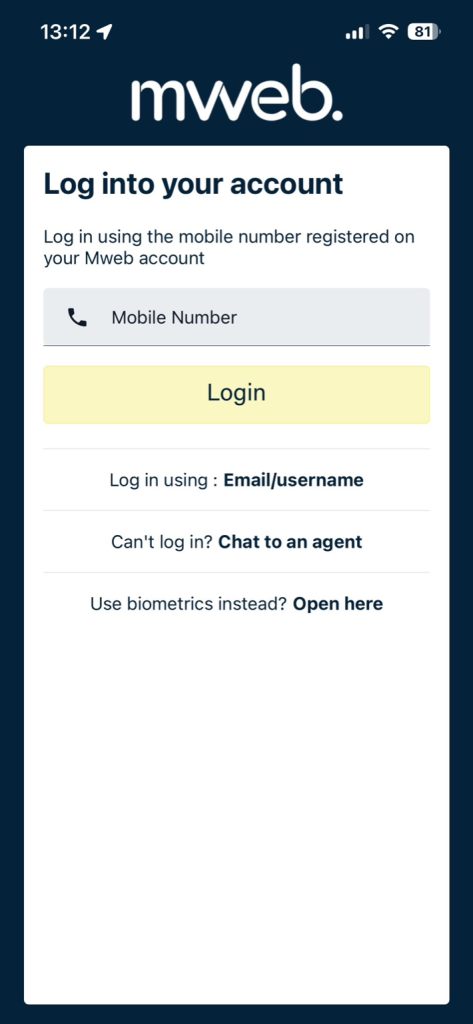
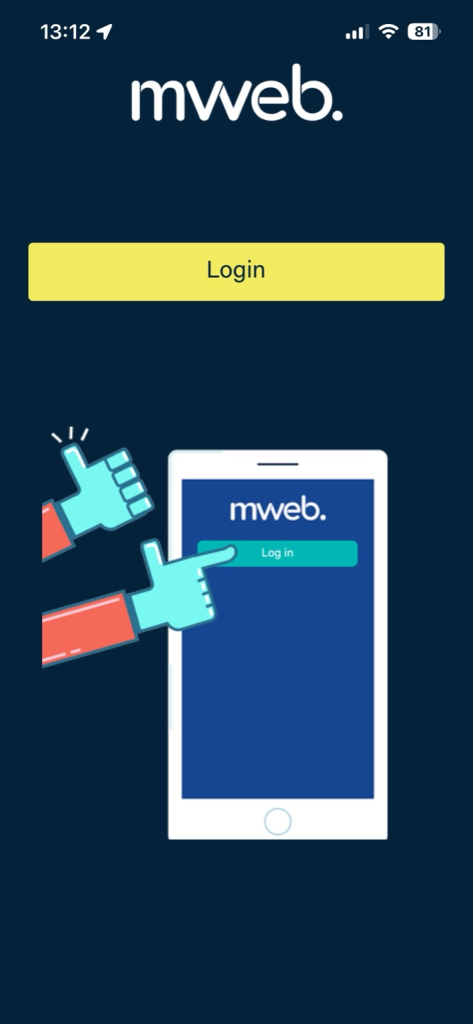
    When you open the Mweb Mobile App, tap Login to get started. The app gives you a few different ways to sign in.
  • 1. Logging In With a Mobile Number

    This is the most common option.

    • Uses the mobile number registered on the account
    • Ideal if you don't know or forgot your username or password
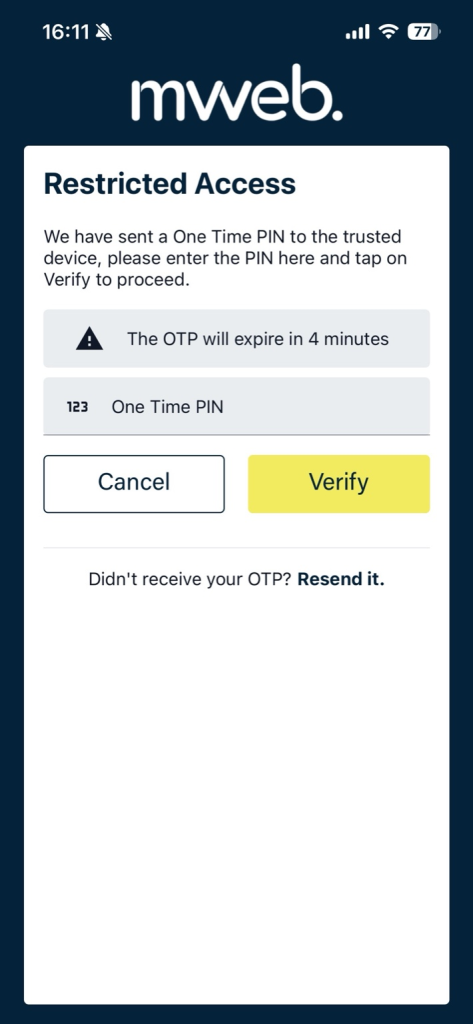
    • You will receive an OTP via SMS

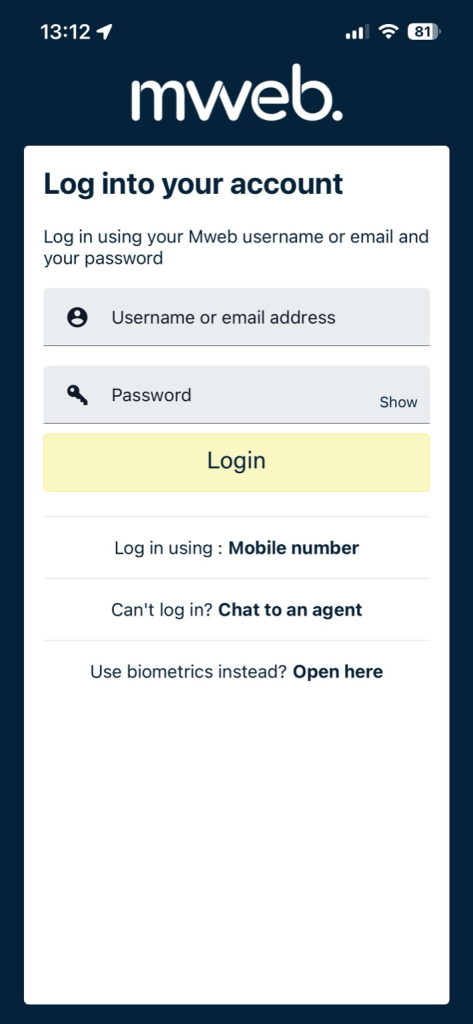
    2. Log In Using Email or Username

    You can also log in using the email or username registered on your Mweb account.

    1. Enter your Mweb username or email address
    2. Enter your password
    3. Tap Login

    Tip: Passwords are case-sensitive. If it fails, double-check caps lock before trying again.
    3. Log In Using Biometrics

    If your device supports it, you can use fingerprint or Face ID.

    • Biometrics must be enabled in the app settings
    • You need to log in successfully at least once using email, username, or mobile number first

    If biometrics stop working, you can always fall back to a standard login.

  • Can’t Log In?

    If you’re stuck:

    • Check that you’re using the correct email, username, or mobile number
    • Make sure your device has an active internet connection
    • Use Chat to an agent from the login screen for assistance

    Support can help verify your details and get you back in.

  • Good to Know

    • The Mweb Mobile App uses the same login details as your Mweb Online Account
    • You can switch between login methods at any time
    • For security reasons, repeated failed attempts may temporarily block login

    What’s Next?

    Once logged in, your next stop is understanding where everything lives in the

    ©Mweb (Pty) Ltd. All rights reserved.

    ISPA Logo