Navigating the Mweb Mobile App

Navigating the Mweb Mobile App

  • How the Mweb Mobile App Is Laid Out

    Once you’re logged in, the app is designed around two main navigation areas:

    • The dashboard
    • The menu and bottom navigation bar

    Knowing what lives where saves time and frustration.

  • The Dashboard (Your Home Screen)

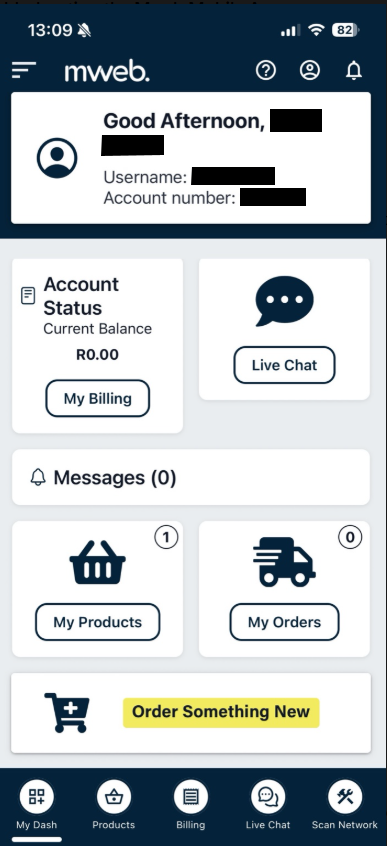
    The dashboard is the first screen you see after logging in. From here you can quickly access:

    • Your account status and balance
    • Messages and notifications
    • Your products and orders
    • Shortcuts to billing, live chat, and ordering new services

    Think of this as your control centre.

    Bottom Navigation Bar

    The bottom navigation bar is always visible and gives you quick access to key areas:

    • My Dash
      Returns you to the main dashboard at any time.
    • Products
      View and manage your active products and services.
    • Billing
      Check your balance, view billing details, and manage payments.
    • Live Chat
      Start a chat with a support agent.
    • Scan Network
      Run a network health check or check for outages in your area.

    This is the fastest way to move around the app.

    The Menu

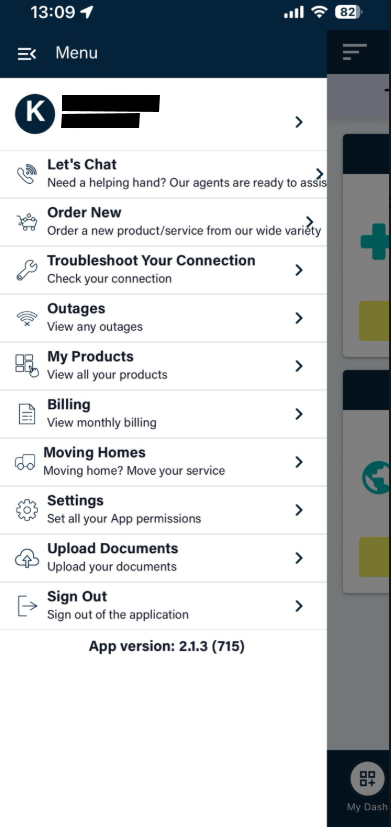
    Tap the menu icon to open the full list of options. From here you can:

    • View your profile details
    • Access messages and notifications
    • Manage app settings and permissions
    • Upload documents
    • Move home or order new services
    • Sign out of the app

    This menu is where less frequent but important options live.
    Switching Between Sections

    You can move between sections at any time using:

    • The bottom navigation bar for quick actions
    • The menu for account-level tasks

    There’s no need to go back to the dashboard every time.

  • How the Mweb Mobile App Is Laid Out

    Once you’re logged in, the app is designed around two main navigation areas:

    • The dashboard
    • The menu and bottom navigation bar

    Knowing what lives where saves time and frustration.

    Good to Know

    • Most actions are no more than two taps away
    • Some options may open a secure in-app browser for verification
    • What you see can vary slightly depending on your account and products

    ©Mweb (Pty) Ltd. All rights reserved.

    ISPA Logo